How to run a local AI model with Ollama
A practical guide to running language models on your own computer, covering Ollama installation, model selection, the local API, privacy and common problems.
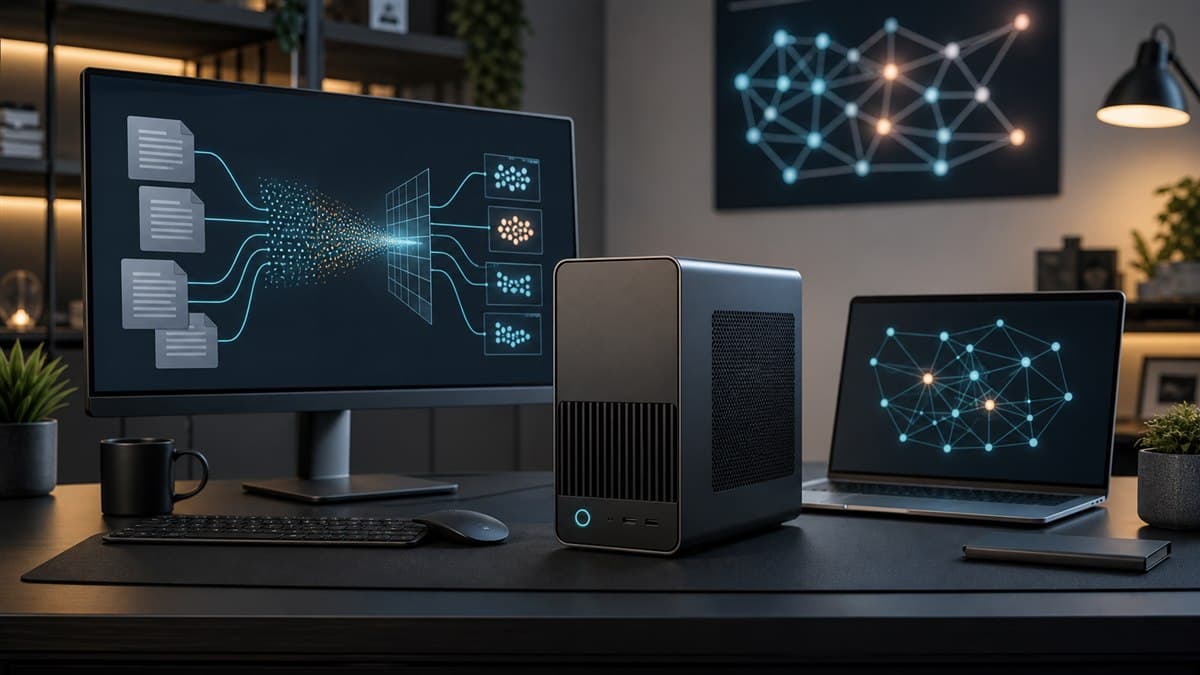
A local language model runs on your computer instead of a cloud provider's server. It can reduce per-request costs, give you more control over documents and support applications that work without a permanent internet connection.
One of the simplest ways to begin is Ollama. It downloads and manages models, runs them locally and exposes an HTTP API for web applications, scripts and chat interfaces.
Before you start
Check your available memory first. A small model with a few billion parameters can run on a modern laptop, while a larger model may require substantially more system RAM or graphics memory.
For an initial test, choose a quantized model in the 2–8B range. It will not match the broadest cloud models, but it can handle summaries, classification, basic coding and small RAG workflows.
Install Ollama
Download the installer from Ollama Download. Packages are available for Windows, macOS and Linux.
Open a terminal and verify the installation:
ollama --versionThen start a model:
ollama run gemma3:4bOllama downloads the model on the first run and opens a simple terminal chat. Enter /bye when you want to leave the session.
How to choose a model
Parameter count is only one factor. Also consider:
- supported languages,
- instruction-following and coding quality,
- context length,
- quantization level,
- license and permitted uses,
- speed on your hardware.
A small, responsive model may be more useful for repetitive tasks. A larger model is worth the extra memory only when its quality produces a measurable benefit.
List downloaded models with:
ollama listRemove one you no longer need:
ollama rm model-nameUse the local API
Ollama exposes its API at http://127.0.0.1:11434 by default. Send a request directly from a terminal:
curl http://127.0.0.1:11434/api/chat \
  -d '{
    "model": "gemma3:4b",
    "stream": false,
    "messages": [
      { "role": "user", "content": "Explain RAG in three sentences." }
    ]
  }'
A Node.js application can call the same endpoint with fetch. This makes the local model usable in a chat interface, document-analysis tool or private assistant.
Privacy: what actually stays local
Prompts sent to the local model endpoint do not need to pass through a commercial model API. You still need to inspect the entire data flow.
Look for:
- chat interfaces with their own telemetry,
- external search or embedding services,
- cloud backups and folder synchronization,
- application logs containing full prompts,
- editor extensions with access to the project.
“Local model” does not automatically mean “secure system.” Privacy is determined by the weakest component in the application.
Context and memory use
A larger context window accepts more text but consumes more memory. The Ollama context-length documentation recommends matching context to both the workload and the available hardware.
Do not select the maximum value by default. A short chat needs less context, while repository analysis or long-document work may need considerably more.
Common problems
Generation is very slow. Try a smaller model, close GPU-heavy applications and check whether part of the model is being offloaded to system RAM.
The model runs out of memory. Use a more aggressively quantized variant, reduce the parameter count or lower the context length.
The target language is weak. Test a model with strong multilingual support. English-language benchmarks do not always predict performance in other languages.
The application cannot reach the API. Confirm Ollama is running and the request targets 127.0.0.1:11434. Do not expose that port publicly without authentication and a controlled gateway.
A practical evaluation plan
Prepare 15–20 prompts that represent the real workload. Measure:
- answer correctness,
- time to first token,
- total generation time,
- memory consumption,
- behavior when knowledge is missing,
- quality in the languages you need.
This small evaluation is more useful than relying on a single benchmark. The best local model is the one that performs well enough for your task on the hardware you actually own.
Where to go next
After the first model is running, add a custom interface, embeddings and document retrieval. A natural next step is our guide to building a RAG application in Next.js with a local LLM.
Start with a small model and a measurable use case. Local AI is most valuable when it solves a concrete workflow rather than becoming another general-purpose chat window.